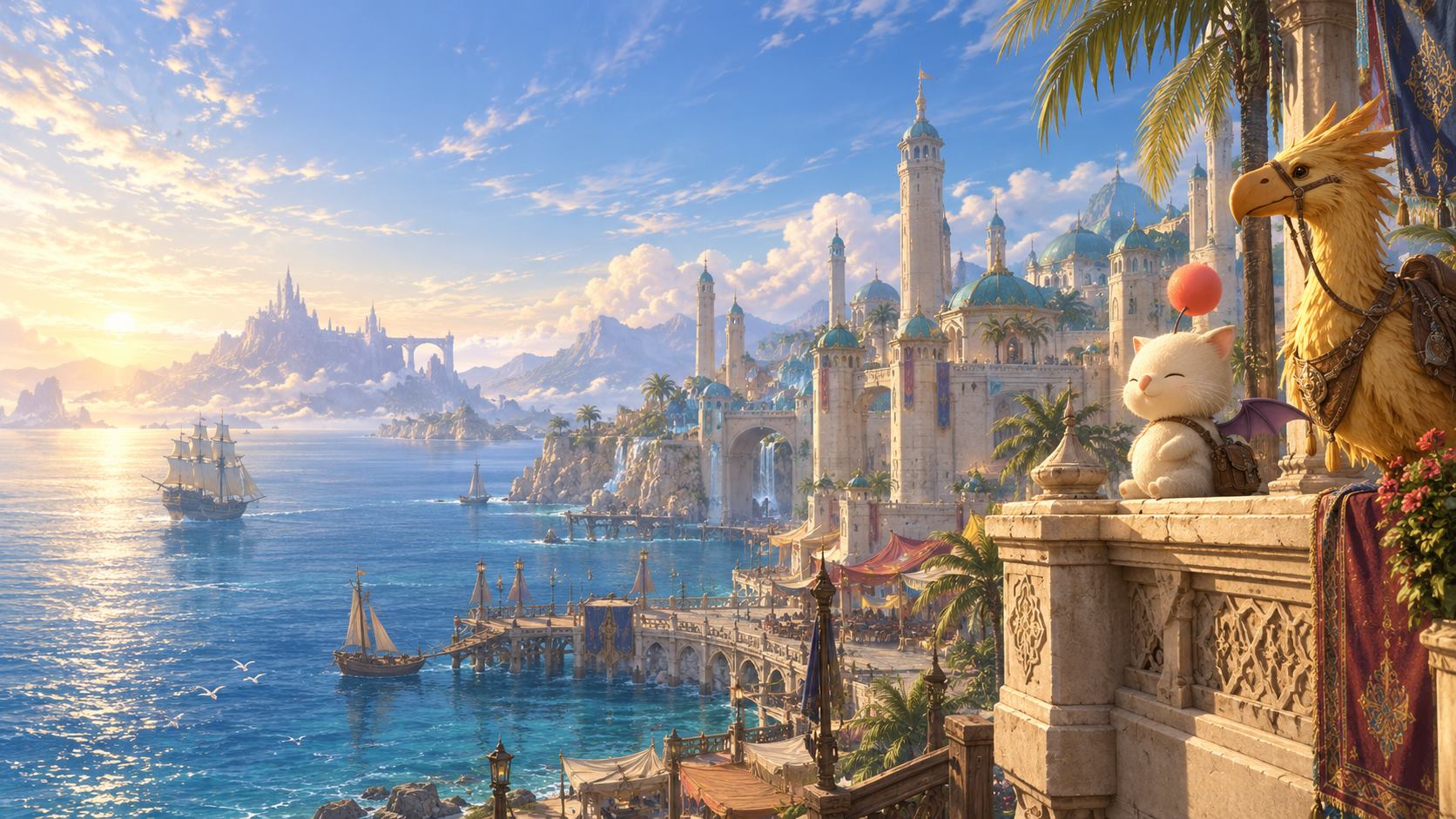
A world of our own
CRYSTALBOUND
Adventures in Vana’diel
Familiar roads.
Unwritten stories.
A new chapter starts with a familiar world.
Get the launcher, gather your companions,
and find your way back to adventure.
Development preview / October 19, 2026
First time here? Start with the complete setup guide →One launcher.
Your next adventure.
Before you set out
A little preparation.
A whole world ahead.
This preview works with an existing US FINAL FANTASY XI installation and Windower. Once they’re ready, Crystalbound keeps itself and our approved client files up to date.
- 01
Prepare your game
Install and update the US FFXI client and PlayOnline. Set up Windower and keep your working profile. Crystalbound also needs Microsoft Edge WebView2.
- 02
Unpack the launcher
Close FFXI, Windower, xiloader, and any older Crystalbound window. Download the ZIP and choose Extract All. Put its contents directly in your FINAL FANTASY XI folder.
Keep Crystalbound.exe and crystalbound.json together. Don’t run the launcher from inside the ZIP.
- 03
Sign in. Step into the world.
Open Crystalbound.exe and approve Windows permission when requested. In Options, choose your game folder, Windower, and profile. Let any launcher update finish, then sign in or create your game account. Once the client is ready, select Play.
No development access code needed.
A smoother departure
Good to know.
Your settings stay yours. Crystalbound updates approved game files while keeping your Windower profile, addons, and personal settings in place.
Download CrystalboundDoes this download include FINAL FANTASY XI?
No. It includes the Crystalbound launcher, its configuration, source, and license notices. Install and update the US game client and PlayOnline separately. Crystalbound then checks the supported base files and downloads our approved custom files after sign-in.
I already play through Windower. What changes?
Keep your existing installation and profile. Select them in Crystalbound’s Options. You’ll sign in and launch here; Windower continues to provide your existing addons and settings. The launcher keeps backups of managed files when applying game updates.
How does the launcher stay up to date?
Crystalbound checks for its own signed updates before sign-in and reopens when an update is ready. If the new version cannot start, it restores the previous launcher. You can retry through Options → Check launcher updates.
If you have a launcher older than 0.2.0, download this ZIP once and replace the old launcher using the setup steps above. Your Windower profile and saved settings carry over.
Where do I create an account?
Open Crystalbound and choose Create an account. If you already have a game account on this server, use it. This site does not collect your game password. Account options and authenticator setup are inside the launcher.
The launcher says my base game needs attention.
Update FFXI through PlayOnline, then open Crystalbound again. This preview checks the main game library and primary file tables against the supported client; it does not replace the official game installer or audit every retail file.
If launch requires permission, approve the Windows prompt or use Allow game launch to retry. You can also right-click Crystalbound and choose Run as administrator.
What is in this preview?
Game-account sign-in, approved client updates, launcher self-updates, and integrated game launch. Crystalbound supplies our public server connection automatically when you press Play.
Choose your Windower executable and profile in Options. You do not need to find an IP address or edit your Windower profile’s XML.
Download details & file verification
- Release
- 0.2.4-dev.1 · Development preview
- Package
- Crystalbound-0.2.4-dev.1-windows-x64.zip
- Size
- 66,806,427 bytes
SHA-256
82c25ccb27711adc828a4bae58f67f92f29c74d39a4d30f80e9d718aa4bfecfcSource and third-party license notices are included in the ZIP. The Windows launcher is not yet code-signed.